

Restore Microsoft 365 data
Restore Microsoft 365 data: file versions and email.
Choose the right saved version, check the destination and verify the result. See how a recovery action is prepared in DataVault365.
Updated 17 September 2026
Example: an overwritten SharePoint document
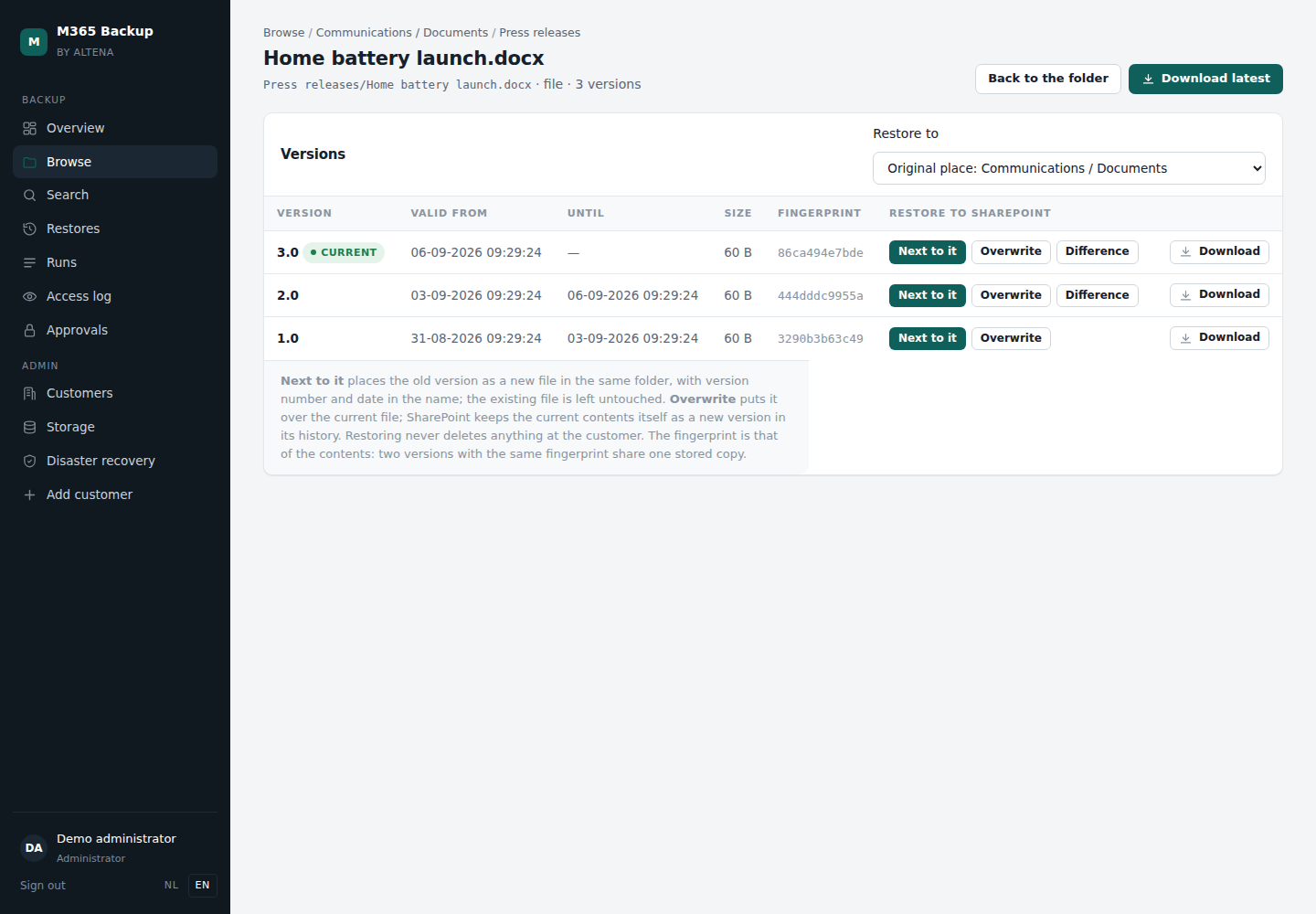
Suppose a document has been overwritten and you want its previous content. In this demonstration, the backup contains three versions of a document.
- Open the correct library and select the document.
- Check the version and its timestamp. Download a copy first if needed to inspect its content.
- Choose the alongside option to restore a separate file, leaving the current document available for comparison.
- Check the restored document and recovery status before using it.
Recovery differs by service
- OneDrive and SharePoint: restore a file or folder alongside current content or deliberately overwrite. Another suitable location within the same organisation can also be used.
- Exchange Online: download a saved message or restore it as a draft copy in a recovery folder. The message is not sent again.
- Power Automate: select a saved cloud flow definition and check permissions and connections. A restored new flow remains off until its owner enables it.
What determines whether recovery is possible?
Data must have been successfully backed up and remain within retention. Restoring to Microsoft requires a suitable destination and valid permissions. Duration depends on data volume, queued work and Microsoft availability. No fixed recovery time is promised here.
During an incident, establish which data is affected, limit further changes and select a suitable recovery point. Contact us if you need help selecting a version or recovery destination.
Explore DataVault365
Discuss backup coverage and recovery
Tell us how many users and which Microsoft 365 services you want to protect. We will discuss coverage, retention and pricing with you.